Kani Child Profiles: Private AI for Kids, With Parents in the Loop
Kid profiles give each child their own encrypted space inside Kani — age-appropriate guardrails, separate conversations, and a Parent Dashboard that surfaces safety signals without reading every message.

Families want their kids to benefit from AI — homework help, curiosity, creative projects — without handing a general-purpose chatbot an open microphone into their child's life. Most assistants weren't built for this: they pool everything into one adult account, train on what you tell them, and give parents no visibility at all.
Kani is our privacy-first AI assistant. Conversations and personal notes stay on your device (or in your private cloud), never on our servers, and we don't train models on them. With child profiles, each kid now gets their own safe space inside the family account — guardrails tuned to their age, and a Parent Dashboard that keeps you informed without hovering over every message.
We're accepting beta testers. Join through getkani.org and get 3 months free — early access to child profiles, direct feedback to the team, and a hand in shaping private AI for families. Requires iOS 17+ or macOS 15+.
What Kani does (the short version)
Kani is a personal AI assistant that learns from you over time — building notes, tracking goals, remembering context — while keeping that knowledge local and under your control. You can see, edit, and delete anything Kani remembers.
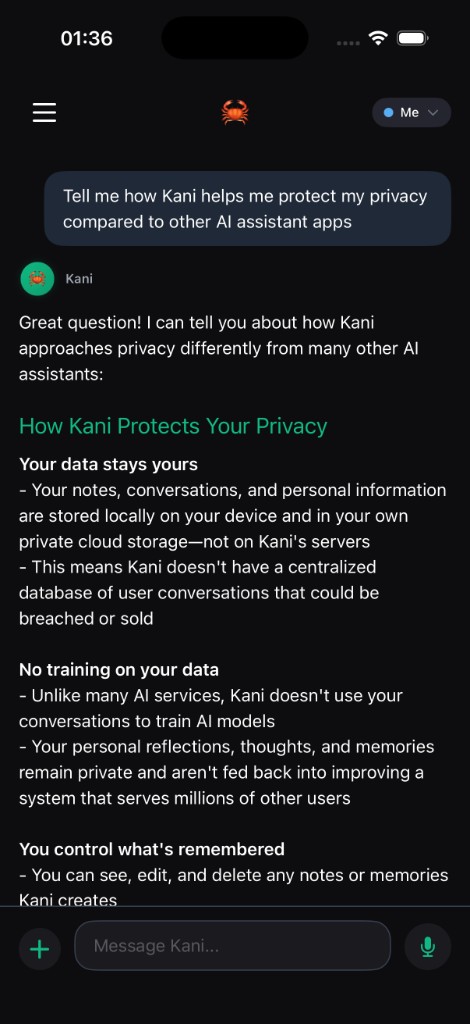
Compared to mainstream assistants, the differences are architectural:
- Your data stays yours — stored on-device or in your private storage. There is no central database of your conversations to breach or sell.
- No training on your conversations — your reflections and your kids' homework questions don't become training data for the next model release.
- You control memory — everything Kani remembers is visible and editable; nothing lives in a black box.
Child profiles extend that same philosophy to families: privacy for the child, visibility for the parent, enforced by design rather than policy pages.
How child profiles work
Separate spaces for each family member
From Settings → Profiles, you manage an owner profile (you) and one or more kid profiles. Each profile is isolated:
- Its own conversations — switching profiles switches context entirely.
- Its own notes and memories — what Ana discusses with Kani stays in Ana's encrypted database.
- Its own settings and guardrails — age range, reading level, and safety rules are per child.
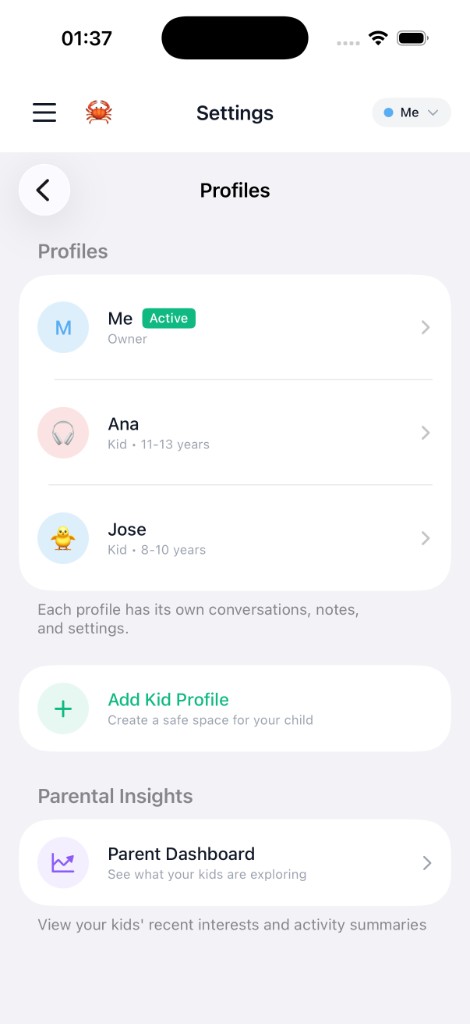
Creating a kid profile is a short guided flow: pick an avatar, set an age band (8–10, 11–13, and so on), and review the guardrails before the profile goes live. From then on, biometric authentication is required to edit kid profiles, switch back to the owner profile, or open the Parent Dashboard — the controls stay behind a gate the child can't bypass.
Age-appropriate guardrails
Guardrails are applied client-side and server-side so they can't be trivially circumvented:
| Guardrail | What it does |
|---|---|
| Age band | Calibrates language complexity and safety analysis to developmental stage. |
| Reading level cap | Keeps responses within an appropriate reading level for the child's age. |
| External links | Can block web search and external link following for younger profiles. |
| Personal info | Can refuse to collect sensitive personal details in conversation. |
| Blocked topics | Parents can restrict specific subject areas per child. |
These aren't suggestions in a system prompt — they're enforced in the tool layer (e.g. disabling web search when external links are blocked) and in server-side moderation for kid-profile outputs.
The Parent Dashboard
When your kids have profiles, Settings → Parent Dashboard opens a parent-only view (behind biometric auth). For each child you can see:
- Safety alerts — flagged when Kani's analysis detects concerning patterns in a child's conversations (bullying, distress, isolation, and other categories calibrated to age).
- Wellbeing overview — a mood summary synthesized from recent conversations, with plain-language guidance ("Ana may be feeling stressed — consider checking in").
- Recent interests — topics and entities your child has been exploring, so you can have informed conversations rather than surveillance.
- Time windows — filter by 7 days, 30 days, or all time.
Alerts are tiered by severity:
| Level | Meaning |
|---|---|
| Info | Worth knowing — minor social friction, typical worries. |
| Watch | Warrants a conversation — ongoing loneliness, sustained distress. |
| Urgent | Needs immediate awareness — explicit safety concerns, signs of abuse or self-harm. |
Each alert comes with a short rationale and a brief excerpt from the conversation, so you understand why something was flagged — not just that a keyword matched. Once you've addressed an alert, mark it as reviewed and it leaves the queue. Urgent signals can also trigger push notifications, so awareness doesn't depend on you opening the app.
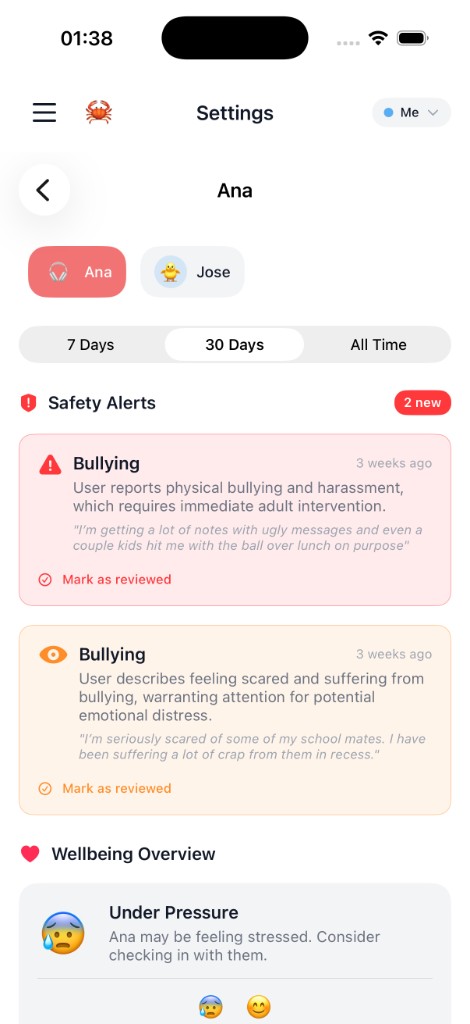
Important nuance: the Parent Dashboard is a signal layer, not a transcript browser. We designed it so parents get actionable awareness when something matters, while day-to-day conversations remain the child's private space with Kani.
Why this matters
For kids: an AI companion for school, creativity, and curiosity — inside boundaries that match their age, and without their data becoming a product.
For parents: visibility when it counts, without installing spyware or reading every message. You configure the guardrails, get alerted when something genuinely concerning appears, and see a wellbeing pulse that tells you when to check in.
For the family: one app, multiple profiles, one subscription — instead of juggling accounts or trusting a general-purpose assistant to "act safe."
Beta access: 3 months free
Child profiles are live in the current beta, and we're looking for families to try private AI with their kids and tell us what works.
Beta testers get:
- 3 months free on Kani
- Early access to child profiles and the Parent Dashboard
- A direct line to the team — we read every piece of feedback
- A say in guardrail defaults, alert categories, and family workflows
How to join:
- Visit getkani.org
- Request beta access with your email
- Install via TestFlight (iOS 17+ or macOS 15+)
Ready to try it? Join the Kani beta — 3 months free, child profiles included.
A few practical tips for families
- Start with one child profile and walk through the guardrails together before handing the device over. The defaults are sensible, but every family has different boundaries.
- Talk about the Parent Dashboard openly. Kids who understand that alerts exist for safety — not punishment — engage more honestly with the assistant.
- Use age bands honestly. The safety analysis and reading-level caps are calibrated to the band you select; picking a higher age to "unlock" features weakens the guardrails.
- Review alerts promptly, then mark them reviewed. The dashboard stays useful when it's a living queue, not a pile of stale warnings.
What's next
We're iterating on child profiles based on beta feedback: finer age calibration, more parent-configurable alert thresholds, and expanded wellbeing signals. If you're building products for families or evaluating AI assistants for your household, we'd love to hear from you at c@atomicolabs.com.
Kani is built by AtomicoLabs — the same team behind Super, AWEsome, and Reactor. Learn more about our products or read how we benchmark the models that power our stack.